Go Wireless: CarPlay & Android Auto Adapter Guide
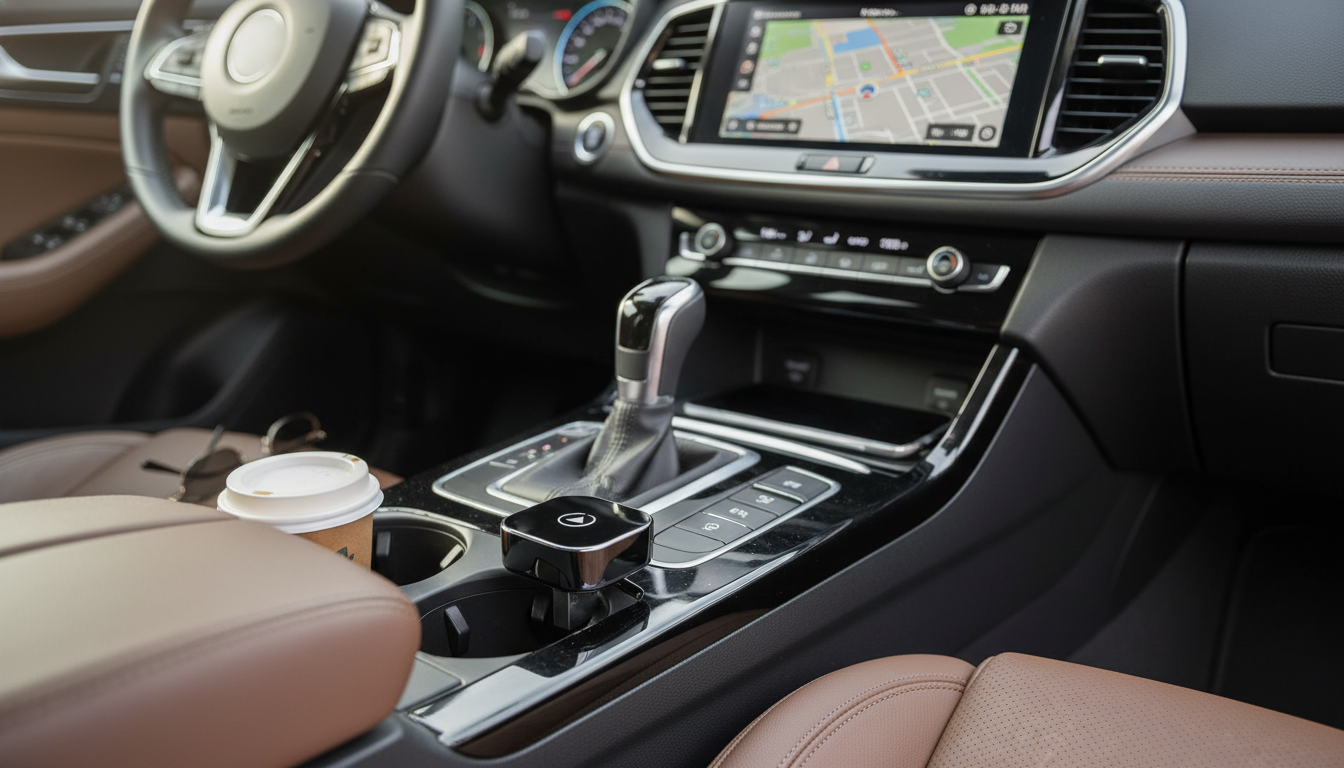
Wireless CarPlay & Android Auto Adapter: Cable-Free Smartphone Driving
A wireless CarPlay and Android Auto adapter plugs into a vehicle’s existing USB port and creates a Wi‑Fi/Bluetooth bridge so a compatible phone can connect without a cable. It keeps navigation, calls, and music on the in-dash display while reducing cord clutter and repeated plug-in wear. For drivers who hop in and out often, the biggest win is convenience: start the car, wait a moment, and your familiar phone interface appears on the screen—no cable routine required.
What a wireless adapter does (and what it doesn’t)
A wireless adapter is best thought of as a “bridge” between your phone and the car’s factory infotainment system. It doesn’t change what your head unit is capable of; it just changes how your phone connects.
- Converts a car’s factory wired CarPlay/Android Auto port into a wireless connection using Bluetooth for the initial handshake and Wi‑Fi for the data stream.
- Keeps the same on-screen interface and supported apps you already use with a cable, subject to vehicle and phone compatibility.
- Does not add CarPlay/Android Auto to a head unit that never supported it; the car typically must already have wired CarPlay and/or wired Android Auto.
- Does not replace a dash cam, GPS module, or infotainment upgrade; it’s primarily a convenience bridge for the phone connection.
For official setup expectations and feature behavior, it helps to reference the platform guides from Apple CarPlay Support and Android Auto Help.
Compatibility checklist before buying
Most connection issues come down to a simple mismatch: the car doesn’t actually support wired projection, the USB port is charge-only, or the infotainment firmware is behind. A quick pre-check saves a lot of frustration.
Quick pre-check: will an adapter work?
| Check | How to verify | Why it matters |
|---|---|---|
| Wired CarPlay works | Plug iPhone into the USB data port and confirm CarPlay appears | Adapter typically needs existing wired CarPlay support |
| Wired Android Auto works | Plug Android phone in and confirm Android Auto launches | Adapter typically needs existing wired Android Auto support |
| USB port is data-capable | Try a data transfer cable and see if the head unit recognizes the phone | Charge-only ports won’t pass infotainment data |
| Stable infotainment firmware | Check for head-unit updates via dealer or manufacturer menu | Old firmware can cause random disconnects |
- Vehicle requirement: the infotainment system should support wired CarPlay and/or wired Android Auto through a USB data port (not charge-only).
- Phone requirement: iPhone with CarPlay support or Android phone with Android Auto support; ensure the latest OS and app updates are installed.
- Port and power: some vehicles have multiple USB ports; only one may support data. If the port is low-power, a short high-quality cable or powered hub (vehicle-dependent) may help.
- Region and model differences: the same vehicle model can have different infotainment trims; confirm by testing wired CarPlay/Android Auto first.
Setup in a few minutes
Most adapters are essentially plug-and-pair. The first connection takes the longest because you’re approving permissions and saving the pairing.
- Plug the adapter into the car’s USB data port used for wired CarPlay/Android Auto.
- Enable Bluetooth and Wi‑Fi on the phone; approve pairing prompts and on-screen permission requests.
- Let the first connection complete and save the pairing; later starts usually reconnect automatically after ignition.
- If multiple phones are paired, set the preferred phone (or disable Bluetooth/Wi‑Fi on the others) to reduce connection confusion.
Daily use tips for a faster, more stable connection
Wireless projection is convenient, but it’s still a wireless link—so placement, interference, and power can matter more than with a cable.
- Give it a moment: allow 15–45 seconds after starting the car for the wireless link to establish; some vehicles take longer during boot.
- Keep the phone close: keep the phone in the front cabin (not the trunk) to reduce signal loss; avoid placing it behind thick metal or in closed compartments.
- Reduce interference when possible: if audio stutters, reduce Wi‑Fi congestion by disabling unused hotspots and keeping the adapter unobstructed.
- Prevent port strain: use a short, high-quality USB extension if the port is recessed and the adapter sits under tension; avoid long, thin cables that can cause voltage drop.
- Plan for charging: for long trips, plug the phone into a charger (12V/USB‑C PD) for battery support; wireless projection can drain battery faster than wired.
Common issues and quick fixes
Driving focus and privacy basics
For safety guidance on staying attentive behind the wheel, see the NHTSA distracted driving resource.
A straightforward option to get started
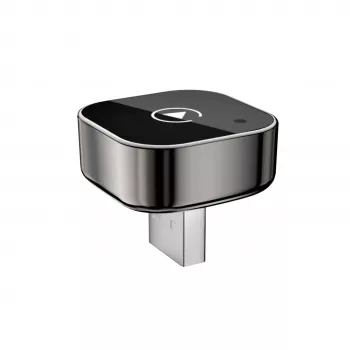
- Wireless CarPlay & Android Auto Adapter (in stock): a compact plug-in bridge designed to enable cable-free projection on compatible vehicles.
- Works best when the car already supports wired CarPlay/Android Auto and the phone is updated to the latest stable software.
- Ideal for quick trips where you want the screen experience without the cord routine.
- The Ultimate Productivity Blueprint
- Stronger Together: Family Bonding Pack
- Confident Kids Bundle: Nurturing Emotional Strength
FAQ
Will a wireless adapter work in any car?
Usually only if the vehicle already supports wired CarPlay and/or wired Android Auto through a USB data port. It typically won’t add these features to a head unit that doesn’t support them.
Why is there a delay or slight lag when using wireless projection?
Wireless projection can introduce small latency because audio and interface data travel over Wi‑Fi. Keeping the phone and head unit updated and reducing interference often improves responsiveness.
Can two phones share the adapter?
Multiple phones can often be paired, but only one connects at a time. Setting a primary device and removing unused pairings helps prevent accidental connections.







Leave a comment