Portable Wireless CarPlay/Android Auto Screen Setup Guide
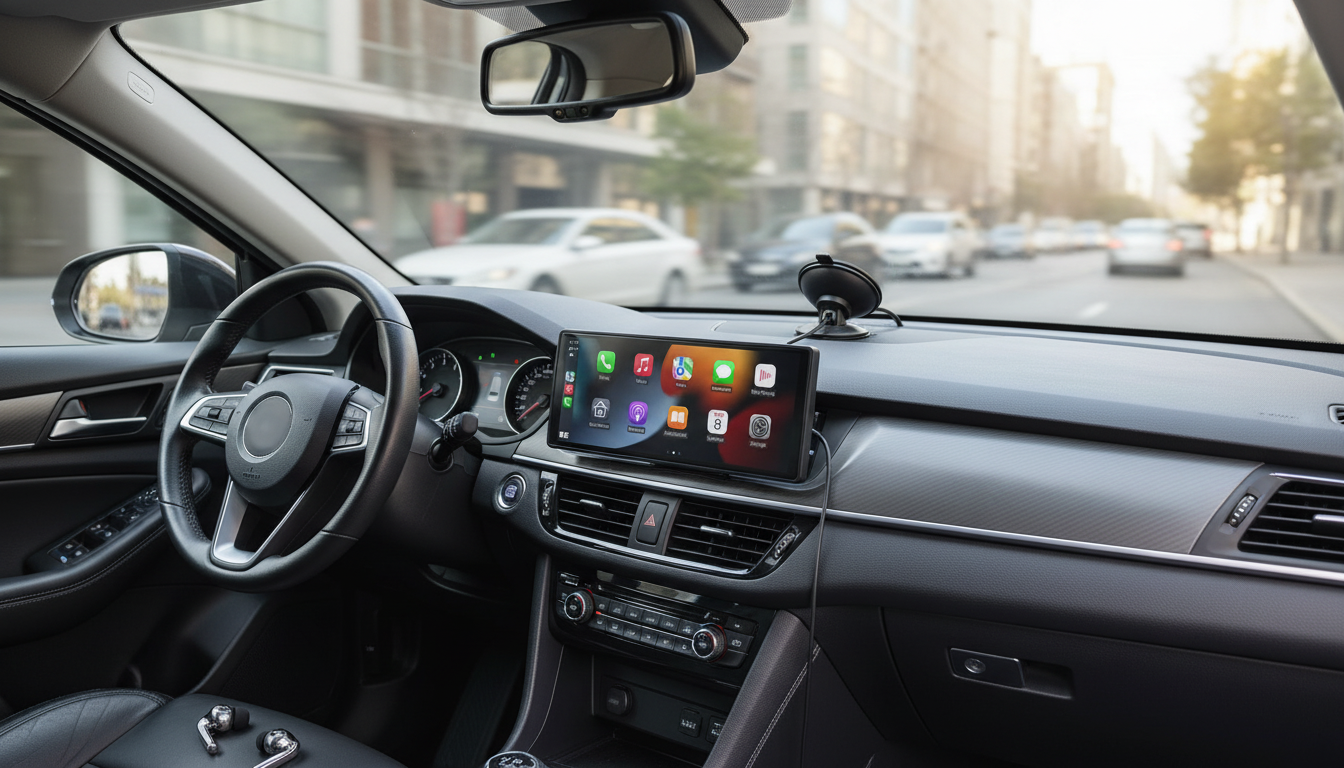
Universal Portable Wireless CarPlay & Android Auto Touchscreen for Car: What to Expect and How to Set It Up
A portable touchscreen is one of the simplest ways to bring modern, phone-based navigation, hands-free calling, and music controls into an older vehicle—without replacing the factory head unit. Instead of tearing into the dash, you mount a standalone display, power it from a 12V outlet or USB, and connect audio to your existing speakers. Below is a practical guide to what a universal wireless CarPlay/Android Auto screen does, how to install it neatly, and how to keep daily connectivity reliable.
What a portable CarPlay/Android Auto touchscreen does
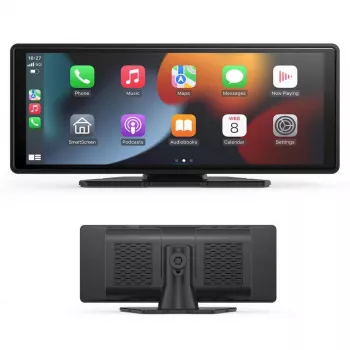
Think of a portable CarPlay/Android Auto unit as a smart “mirror” for your phone’s driving-friendly apps. Once paired, it presents familiar interfaces for navigation, messages, music, and voice assistants on a larger, easier-to-see screen.
- Adds a standalone display that mirrors supported apps from an iPhone (CarPlay) or Android phone (Android Auto).
- Keeps the original radio intact while providing a modern interface for maps, messages, music, and voice assistants.
- Typically mounts on the dashboard or windshield and connects to power plus audio (AUX, Bluetooth, or FM transmitter depending on setup).
- Wireless connections reduce cable clutter, while wired options may still be available for charging or stability.
For platform basics and supported features, Apple and Google maintain official overviews: Apple CarPlay and Android Auto.
Key features to look for before buying
Portable screens vary widely in everyday usability. A few practical features matter more than flashy specs.
- Screen size and brightness: Larger screens are easier to glance at, while higher brightness improves daytime readability. A matte finish can help cut glare.
- Stable wireless pairing: Look for fast reconnect after engine start so you’re not re-pairing every trip.
- Audio output options: Choose a unit that matches your car’s inputs—AUX-in, Bluetooth to the factory stereo, or FM transmitter as a fallback.
- Quick controls: Physical buttons or clear on-screen shortcuts for home, voice, and volume reduce fiddling.
- Included accessories: A sturdy mount, reliable power adapter, and long enough cables make a big difference; it’s also helpful if replacement mounts are easy to find.
Compatibility checklist for most vehicles and phones
Most compatibility issues come down to three things: power, audio path, and a phone that supports the platform. Before ordering, check the items below.
Quick compatibility guide
| What to check | Why it matters | Good sign |
|---|---|---|
| Car has AUX-in | Most consistent audio quality | 3.5mm AUX port available |
| Car supports Bluetooth audio | Cable-free audio to factory speakers | Factory radio pairs with phone/devices |
| Clear FM band in area | FM transmitter can work with less interference | Several unused frequencies available |
| Phone supports CarPlay/Android Auto | Required for app mirroring | CarPlay/Android Auto works in other cars |
| Mount location is stable | Reduces vibration and glare | Flat dash area or sturdy windshield mount point |
- Vehicle power: Most units run from the 12V outlet (cigarette lighter) or USB. Confirm the outlet location so you can route the cable along trim for a clean look.
- Stereo input: If AUX exists, it’s usually the most predictable. Bluetooth is convenient if your factory stereo supports it. FM transmission is best treated as a backup because crowded radio areas can create static.
- Phone requirements: CarPlay needs a compatible iPhone and iOS version; Android Auto needs a supported Android phone. If your phone already works with CarPlay/Android Auto in another vehicle, that’s a strong indicator.
- Mounting space: Keep the screen out of air vent airflow paths and away from any area that would obstruct sightlines.
Setup in under 20 minutes (clean, reliable installation)
A tidy setup feels closer to an OEM upgrade and helps the screen remain stable over bumps.
Daily use tips for smoother wireless performance
Portable screen vs replacing the head unit
At-a-glance comparison
| Option | Install effort | Portability | Typical cost |
|---|---|---|---|
| Portable touchscreen | Low | High | Lower |
| Replacement head unit | Medium to high | Low | Higher |
Safety and legal considerations
- Mount placement: Avoid blocking the windshield view and keep the device away from airbag deployment zones.
- Minimize distraction: Use voice commands for calls and messages, and set destinations before driving when possible. The NHTSA’s driver distraction guidance is a helpful reminder of safer habits.
- Local laws vary: Some states restrict windshield mounts or screen placement. Check local rules if you’re unsure.
- Audio volume: Keep alerts loud enough to hear without drowning out outside sounds like sirens and horns.
Product options available now
- Universal Portable Wireless CarPlay & Android Auto Touchscreen for Car (in stock)
- The Ultimate Productivity Blueprint | Digital Productivity Guide for Goal Setting, Time Management & Daily Routines (in stock)
- Stronger Together: Family Bonding Pack | Digital Family Activities Guide for Kids & Parents (in stock)
FAQ
Will this work in a car that doesn’t have CarPlay or Android Auto built in?
Yes. The CarPlay/Android Auto experience comes from the portable screen plus your phone; the vehicle mainly needs power and a way to send audio to the speakers (AUX, Bluetooth, or FM).
What’s the best way to get sound through the car speakers?
AUX is usually the most consistent, Bluetooth is a solid second choice when AUX isn’t available, and an FM transmitter is best as a fallback when the other two aren’t practical (since interference can vary by area).
Why does wireless CarPlay/Android Auto sometimes fail to connect?
Common causes include Wi‑Fi/Bluetooth being off, competing saved Bluetooth devices, startup timing, phone OS changes, or distance/interference. A quick fix is to toggle Wi‑Fi/Bluetooth, forget and re-pair the device, and restart the phone and the screen.







Leave a comment